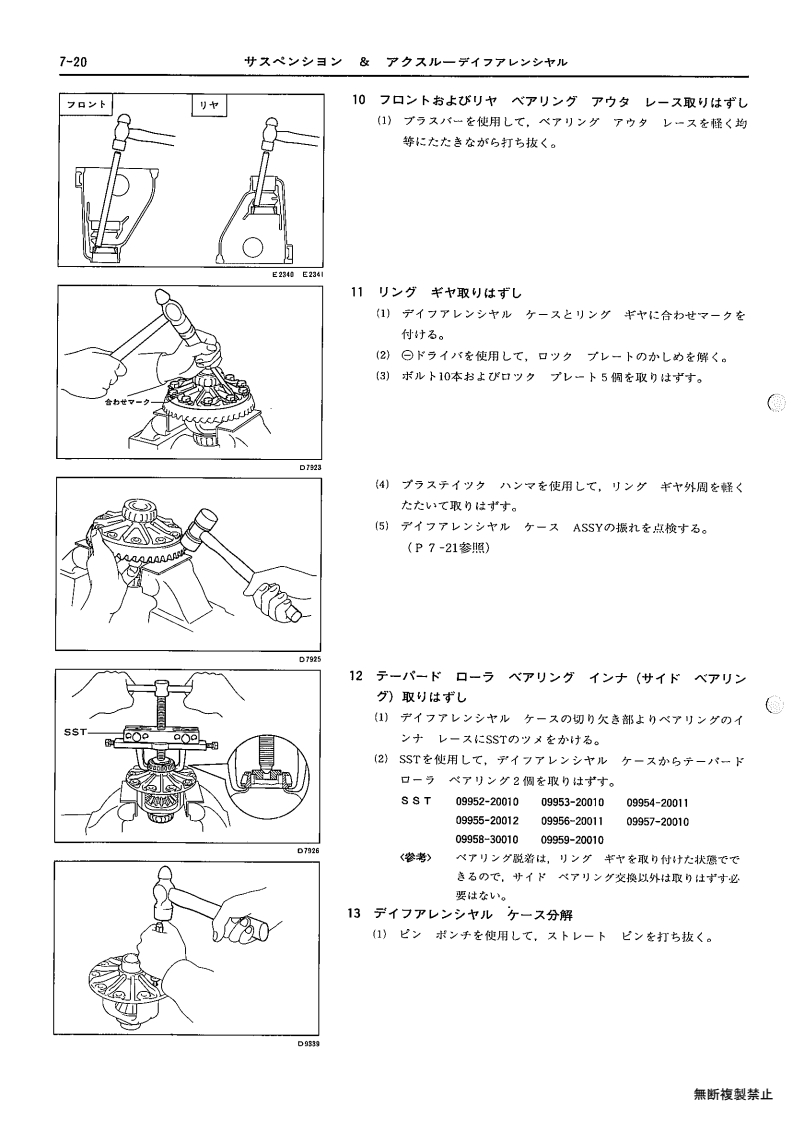
- 007-page01 007-001
- 007-page02 007-002
- 007-page03 007-003
- 007-page04 007-004
- 007-page05 007-005
- 007-page06 007-006
- 007-page07 007-007
- 007-page08 007-008
- 007-page09 007-009
- 007-page10 007-010
- 007-page11 007-011
- 007-page12 007-012
- 007-page13 007-013
- 007-page14 007-014
- 007-page15 007-015
- 007-page16 007-016
- 007-page17 007-017
- 007-page18 007-018
- 007-page19 007-019
- 007-page20 007-020
- 007-page21 007-021
- 007-page22 007-022
- 007-page23 007-023
- 007-page24 007-024
- 007-page25 007-025
- 007-page26 007-026
- 007-page27 007-027
- 007-page28 007-028
- 007-page29 007-029
- 007-page30 007-030
- 007-page31 007-031
- 007-page32 007-032
Section navigation
32 pages · currently page 20.
Compare pages
Save pages while browsing, then open two side by side.
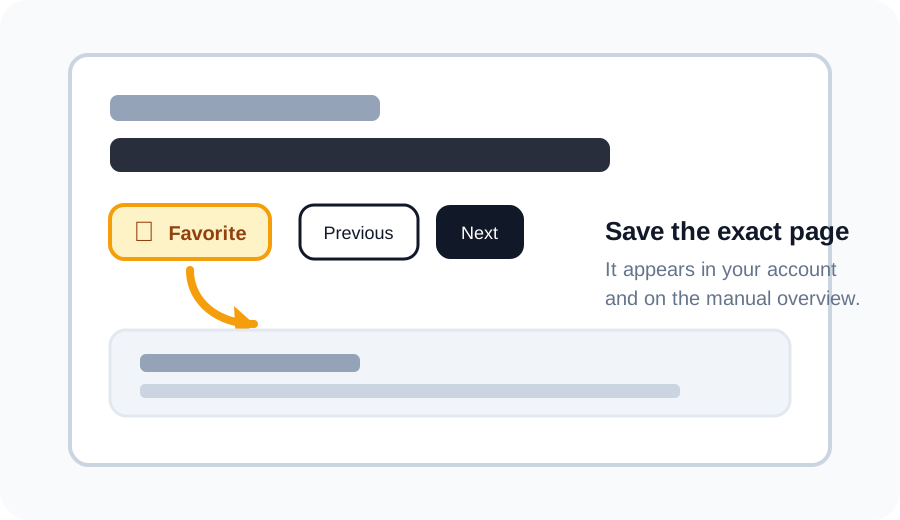
Favorite a page
Click the star above a scan to save that exact page. Your saved pages appear in your account and as thumbnails under the matching section on the manual overview.
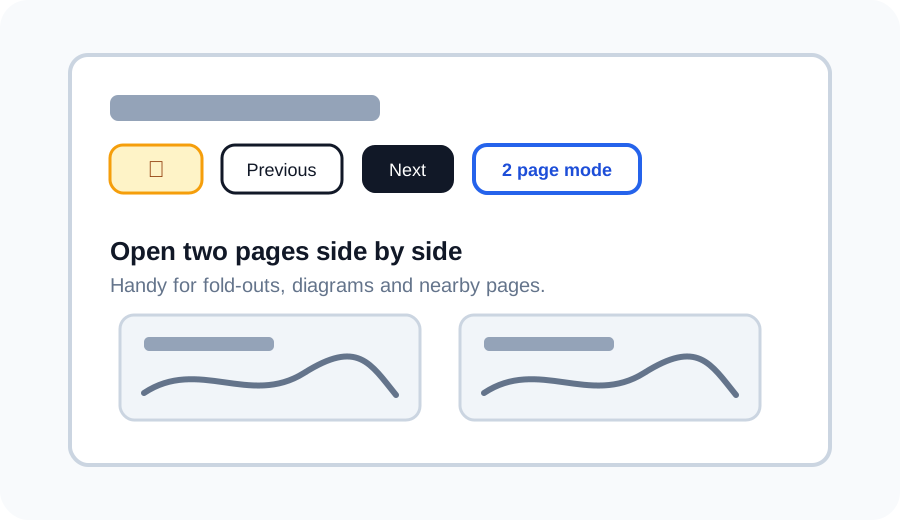
Use 2 page mode
Use 2 page mode to open the current page next to another page. This is useful for wiring diagrams, fold-outs, or comparing nearby pages without losing your place.
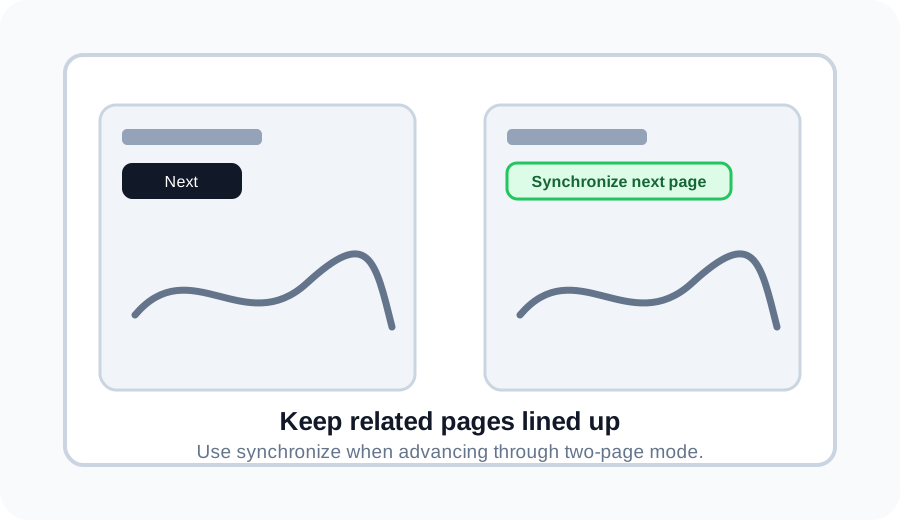
Synchronize pages in 2 page mode
If one side is ahead or behind, use Synchronize next page to move the right page back in line with the left page.
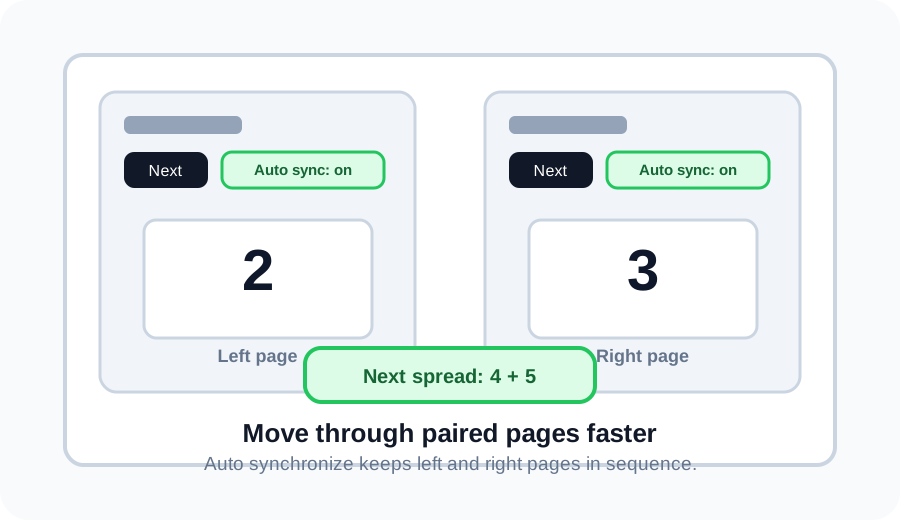
Auto synchronize spreads
Turn on Auto synchronize, then Next moves two pages at once. For example, pages 2 and 3 become pages 4 and 5.
Discuss this page on the forum
Log in to start a discussion about this archive page. Existing discussions stay linked to the page so everyone can find them later.