- Body 5_1
- Body 5_2
- Body 5_3
- Body 5_4
- Body 5_5
- Body 5_6
- Body 5_7
- Body 5_8
- Body 5_9
- Body 5_10
- Body 5_11
- Body 5_12
- Body 5_13
- Body 5_14
- Body 5_15
- Body 5_16
- Body 5_17
- Body 5_18
- Body 5_19
- Body 5_20
- Body 5_21
- Body 5_22
- Body 5_23
- Body 5_24
- Body 5_25
- Body 5_26
- Body 5_27
- Body 5_28
- Body 5_29
- Body 5_30
- Body 5_31
- Body 5_32
- Body 5_33
- Body 5_34
- Body 5_35
- Body 5_36
- Body 5_37
- Body 5_38
- Body 5_39
- Body 5_40
- Body 5_41
- Body 5_42
- Body 5_43
- Body 5_44
- Body 5_45
- Body 5_46
- Body 5_47
- Body 5_48
- Body 5_49
- Body 5_50
- Body 5_51
- Body 5_52
- Body 5_53
- Body 5_54
- Body 5_55
- Body 5_56
- Body 5_57
- Body 5_58
- Body 5_59
- Body 5_60
- Body 5_61
- Body 5_62
- Body 5_63
- Body 5_64
- Body 5_65
- Body 5_66
- Body 5_67
- Body 5_68
- Body 5_69
- Body 5_70
- Body 5_71
- Body 5_72
- Body 5_73
- Body 5_74
- Body 5_75
- Body 5_76
- Body 5_77
- Body 5_78
- Body 5_79
- Body 5_80
- Body 5_81
- Body 5_82
Section navigation
82 pages · currently page 60.
Compare pages
Save pages while browsing, then open two side by side.
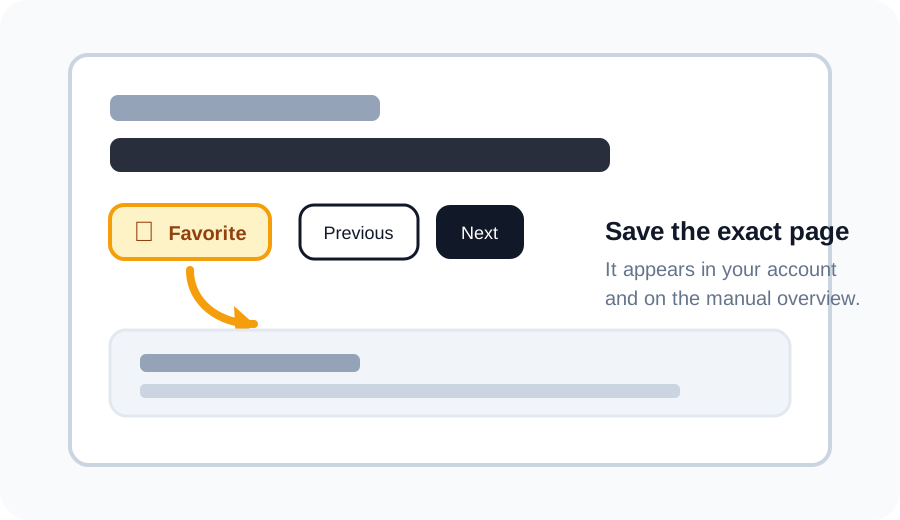
Favorite a page
Click the star above a scan to save that exact page. Your saved pages appear in your account and as thumbnails under the matching section on the manual overview.
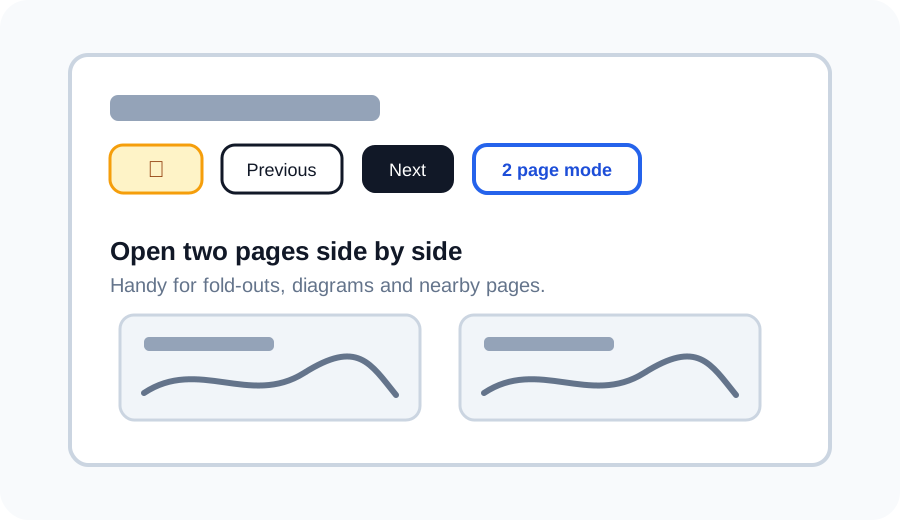
Use 2 page mode
Use 2 page mode to open the current page next to another page. This is useful for wiring diagrams, fold-outs, or comparing nearby pages without losing your place.
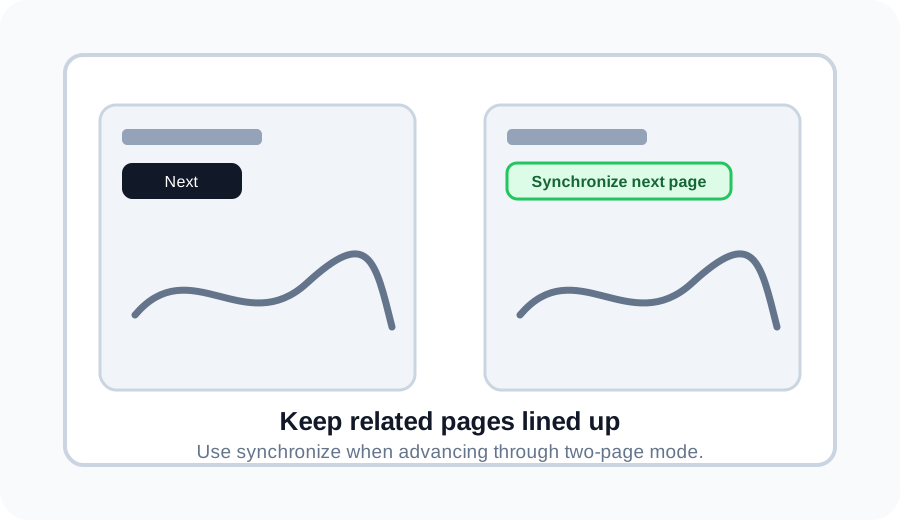
Synchronize pages in 2 page mode
If one side is ahead or behind, use Synchronize next page to move the right page back in line with the left page.
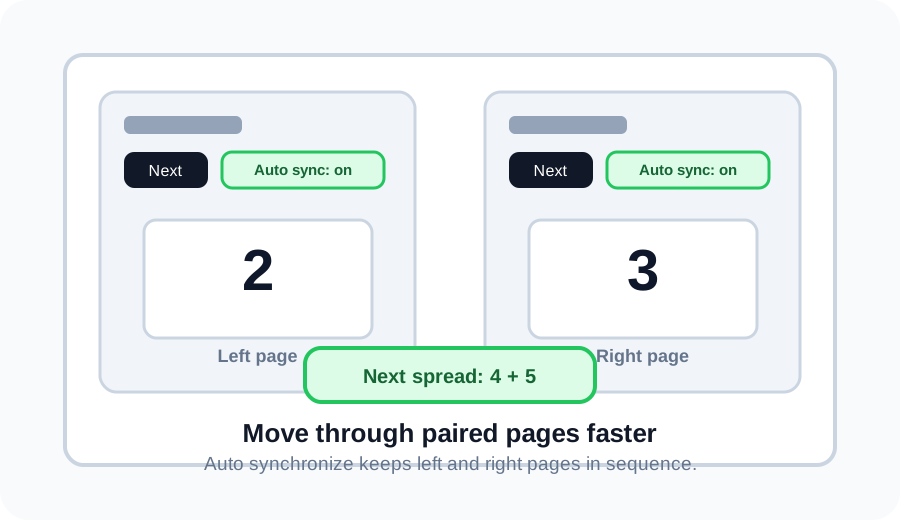
Auto synchronize spreads
Turn on Auto synchronize, then Next moves two pages at once. For example, pages 2 and 3 become pages 4 and 5.
Discuss this page on the forum
Log in to start a discussion about this archive page. Existing discussions stay linked to the page so everyone can find them later.